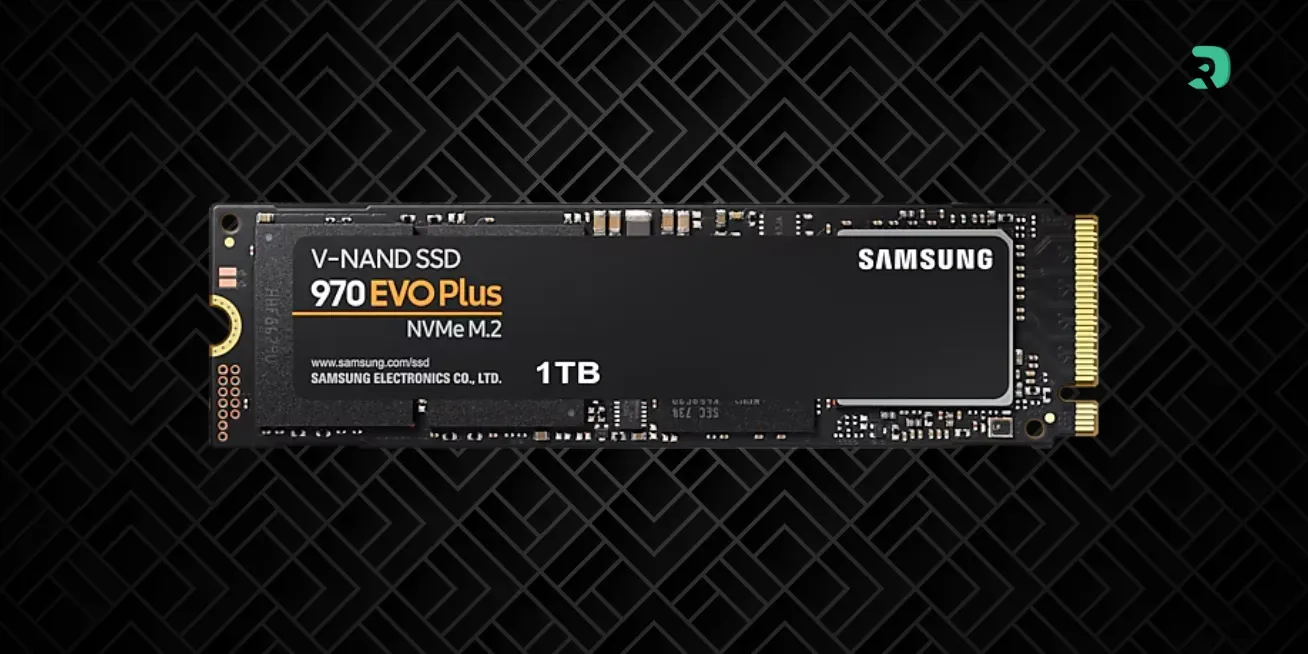
C Drive Full: Compress Windows or Add an SSD in 2026? What Linus Tech Tips Shows (and the NVMe SSDs Worth Buying)

c drive full free up disk space windows 11 compact os compactos windows 11 compress windows linus tech tips winrar windows folder add an nvme ssd 1tb nvme ssd

Is your C drive full? Linus Tech Tips tested a bad Reddit idea: compressing the Windows folder with WinRAR. We explain why it is dangerous, how to use Compact OS and the Windows tools (Storage Sense, Disk Cleanup, hibernation, DISM) to free up space, and which 1 or 2 TB NVMe SSD to add: WD_BLACK SN7100, Kingston NV3, Samsung 990, Crucial P310 or WD Green SN3000.

The short answer: clean up, compress a little, then add an SSD

Is your C drive in the red? Here is what actually works on Windows 11 and Windows 10, in order:

  1. Clean up with the Windows tools: Storage Sense, Cleanup recommendations and Disk Cleanup (with “Clean up system files”). It is risk-free and often the most effective step.
  2. Reclaim the big system files: hibernation turned off or reduced, the old Windows.old folder after an update, component cleanup with DISM.
  3. Compress Windows the right way with Compact OS: a few gigabytes gained, at the cost of a little CPU work. Never by archiving the Windows folder with WinRAR or 7-Zip.
  4. Add a 1 or 2 TB NVMe SSD: it is the only lasting fix. SSD prices move fast right now, so check the live price in each product box below.

Our SSD picks: the WD_BLACK SN7100 for games and heavy writes, the Kingston NV3 on a budget, the Samsung 990 and the Crucial P310 for a laptop, and the WD Green SN3000 2 TB for capacity. If you just want the best 1 TB drive, our 1 TB M.2 SSD guide compares more models.

What Linus Tech Tips shows: a Windows folder compressed with WinRAR

On October 20, 2026, Linus Tech Tips published “I Gotta Stop Following Advice From Reddit”. The starting point: a Reddit user who was running out of space right-clicked the Windows folder and chose “Add to archive” in WinRAR. The team repeated the experiment to see what happens.

  • WinRAR lets you do it: it only complains about the few dozen system files that are in use, and compresses everything else.
  • With the wrong options, it is a disaster: WinRAR can automatically delete the files it has just archived. System files stored inside a .rar can no longer be used by Windows.
  • The video’s verdict: the user had “the right idea, but the wrong tool”. What they were probably looking for was Compact OS, the compression built into Windows 10 and 11.

The video also explains why the idea is not absurd. Back in the days of DOS and early Windows, software like Stacker compressed the whole drive and roughly doubled the usable space. But it concludes that on a modern PC, compression only buys you a short reprieve: enough time to order a bigger drive.

Key takeaway: never archive, move or delete files in C:\Windows, and especially in the WinSxS folder. Microsoft says so explicitly: deleting files from WinSxS can stop your PC from booting or updating.

Why compression barely saves anything in 2026

Lossless compression spots repetitions in a file and replaces them with shorter references. That is the principle behind the LZ (Lempel-Ziv) family of algorithms used in ZIP, PNG and RAR. The problem: most of what fills a drive in 2026 is already compressed.

  • Office documents: a .docx file is actually a ZIP archive in disguise, as the video points out.
  • Photos, music and videos: JPEG, MP3, AAC and MPEG use lossy compression. Compressing them again gains almost nothing.
  • Games: their assets are often already packed and compressed by the engine.
  • Small files: a drive stores data in blocks (4,096 bytes on current drives, versus 512 in the past). A small file usually takes up a whole block, compressed or not.

That is why Compact OS is not enabled by default: the gain is real but limited, and decompression asks the CPU for a little work on every read.

Compact OS: compress Windows the right way, step by step

Compact OS compresses the Windows files themselves, transparently: the system keeps working normally and decompresses what it reads on the fly. The tool ships with Windows 10 and Windows 11 as the command compact.exe. Microsoft notes that Windows Update can replace compressed files to keep the system footprint under control.

1. Check whether Compact OS is already enabled

Open Terminal or Command Prompt as administrator, then type:

compact.exe /CompactOS:query

Windows tells you whether the system is already compressed. On some devices with small storage, it may already be active.

2. Turn on compression

compact.exe /CompactOS:always

The operation takes anywhere from a few minutes to longer depending on the drive and CPU. Keep the PC plugged in and do not turn it off during compression.

3. Roll back if needed

compact.exe /CompactOS:never

How much does it save? Linus Tech Tips gives no figure. The only official reference comes from Microsoft: on 64-bit Windows 10 version 1607 with 4 GB of RAM, Compact OS shrinks the system footprint from about 15.06 GB to 11.3 GB, recovering more than 3.7 GB. That figure is dated and varies with the Windows version and what is installed: treat it as a ballpark, not a promise.

Compressing a games folder with compact.exe

The same command can compress a specific folder, such as an installed game, using the option /EXE and an algorithm of your choice: XPRESS4K (default), XPRESS8K, XPRESS16K or LZX, from fastest to most compressed. Example, from an administrator terminal:

compact.exe /c /s:"D:\Games\MyGame" /i /EXE:XPRESS8K

The gain depends heavily on the game: some compress well, others barely at all because their files already are. Files are decompressed automatically if the game modifies them during an update, so you then need to run the command again. Never apply it to the Windows folder: for that, use /CompactOS and nothing else.

The limits of Compact OS

  • A bit more CPU work: negligible on a recent PC, more noticeable on an old CPU or an entry-level laptop.
  • A one-time gain: you recover a few gigabytes once. If your drive fills up with games or videos, it will be full again within a few weeks.
  • Nothing beats a proper cleanup: temporary files, hibernation or an old Windows.old often weigh more.

Freeing up space on the C drive with the Windows tools

Before compressing anything, start with these steps, all documented by Microsoft. They are ordered from simplest to most technical.

1. Storage Sense and Cleanup recommendations

Go to Settings > System > Storage. Turn on Storage Sense: with the default settings, it runs when space is low, deletes unnecessary temporary files and empties the Recycle Bin on the schedule you choose. The Downloads folder is only touched if you enable it yourself. Just below, Cleanup recommendations lists large files, unused files, files already synced to the cloud and apps you no longer open.

2. Disk Cleanup, including system files

Type “Disk Cleanup” in search (or run cleanmgr), choose the C drive, then click Clean up system files. That is where leftover update files live and, after a Windows upgrade, the previous installation.

3. Delete Windows.old (after a major update)

After an upgrade, Windows keeps the previous version in the Windows.old folder so you can roll back for 10 days. Once everything works, you can delete it via Cleanup recommendations or Disk Cleanup. Warning: this is irreversible, you will no longer be able to go back to the previous version.

4. Turn off or shrink hibernation

The file hiberfil.sys is used for hibernation and Fast Startup. Its size grows with the amount of RAM. In an administrator terminal:

  • powercfg /h /type reduced: shrinks the file by about 30% while keeping Fast Startup.
  • powercfg /h off: deletes the file, but also hibernation and Fast Startup.

On Microsoft’s test configuration (4 GB of RAM), turning off hibernation frees more than 1.5 GB. With 16 or 32 GB of RAM, the file is much bigger, so the gain is too.

5. Clean up the component store (WinSxS) with DISM

Never delete anything by hand in WinSxS. Windows can clean it up by itself through a scheduled task, and you can run the cleanup yourself:

Dism.exe /online /Cleanup-Image /StartComponentCleanup

The option /ResetBase squeezes out a bit more space, but Microsoft warns that afterwards, updates already installed can no longer be uninstalled. Keep it for a stable PC.

6. Move your files and change the default save location

In Settings > System > Storage > Advanced storage settings > Where new content is saved, you can send new apps, documents, music or videos to another drive. With OneDrive, Files On-Demand keeps your files in the cloud and only downloads them when you open them. Game launchers (Steam, Epic, Xbox) also let you move an installed game to another drive.

7. If the Temp folder overflows

Microsoft mentions a special case: if the Temp folder fills up with Microsoft Store files, the command wsreset.exe resets the Store cache.

The table: which fix for how much space?

The figures quoted come from Microsoft’s documentation, on its test configuration. On your PC, the real gain depends on your Windows version, your RAM and what you have installed.

Fix Space recovered Risk Worth doing?
Storage Sense + Cleanup recommendations Variable, often a few GB None (check Downloads before including it) Yes, first
Disk Cleanup + system files Variable, especially after updates None Yes
Delete Windows.old Often several GB after an upgrade No more rolling back to the previous version Yes, if everything works
Hibernation off or reduced More than 1.5 GB (Microsoft test, 4 GB of RAM), more with more RAM No hibernation or Fast Startup if turned off Yes on a desktop PC
Compact OS More than 3.7 GB (Microsoft test, Windows 10 1607) A bit more CPU work Yes, as a quick fix
DISM StartComponentCleanup Variable With /ResetBase, updates can no longer be uninstalled Yes, without /ResetBase by default
Move files, games, OneDrive As much as you move None Yes
Archive C:\Windows with WinRAR or 7-Zip Not applicable Broken Windows, deleted files Never
Add a 1 or 2 TB NVMe SSD 1,000 or 2,000 GB Check compatibility The real fix
Swipe to view more

When to add an SSD instead of compressing

Compressing and cleaning up buys time. Adding an SSD fixes the problem. Go straight to the SSD if:

  • Your C drive is 256 GB or smaller: between Windows, updates and two or three recent games, it will always be full.
  • You have already cleaned up: if the drive fills up again within a few weeks, it is a capacity problem, not a cleanup problem.
  • You play games: recent games easily exceed 100 GB each and compress poorly.
  • Your PC has a free M.2 slot: it is the simplest and cheapest upgrade for a desktop PC, and many laptops have a second one.

Good news: on a desktop PC, there is no need to reinstall Windows. A second SSD works as a storage drive for games and files, and the C drive can breathe again. SSD prices are still trending up in 2026 because of NAND, as we explain in our tracker of SSD prices in 2026: waiting probably will not lower the bill.

Which NVMe SSD to add: our 1 and 2 TB picks

The five models below are M.2 2280 PCIe 4.0 SSDs, the format used by the vast majority of recent desktops and laptops. Specs come from the manufacturers’ data sheets, and the current price appears in each product box.

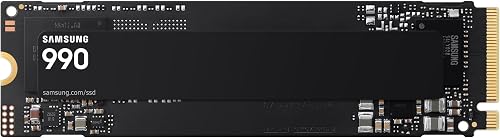
SSD NVMe M.2 2280 vu de face sur fond blanc Click to enlarge

For games and heavy writes, start with the WD_BLACK SN7100. It is the only TLC model in the selection, with the best endurance (600 TBW). If you install your games on it, edit video or often copy large files, it is the safest choice. Our best gaming SSD guide compares it with other models for PC and PS5.

WD_BLACK SN7100 1 TB (WDS100T4X0E)

The SSD to install if you want to put your games and big projects on it: PCIe 4.0 up to 7,250 MB/s read and 6,900 MB/s write, TLC memory and 600 TB of rated endurance. The toughest in the selection for heavy writes.

Pros
  • Up to 7,250 / 6,900 MB/s (sequential read / write)
  • TLC memory: holds up better under sustained writes than QLC
  • 600 TBW and 5-year warranty
Cons
  • No heatsink included (plan one if your motherboard lacks it)
  • Pricier than entry-level 1 TB models
FranceCheck the price in my country

On a tight budget: Kingston NV3

The NV3 is the most affordable 1 TB drive in our catalog at the time of writing. Its 6,000 MB/s read speed is more than enough for Windows, apps and games, and its single-sided form factor fits most laptops.

Kingston NV3 1 TB (SNV3S/1000G)

The simplest SSD to escape a full C drive without breaking the bank: PCIe 4.0 up to 6,000 MB/s read and 4,000 MB/s write, single-sided 2280 form factor that also fits many laptops. It is the cheapest of our 1 TB picks at the time of writing.

Pros
  • Up to 6,000 / 4,000 MB/s, plenty for Windows and games
  • 320 TBW and 5-year limited warranty (Kingston data sheet)
  • Single-sided: compatible with most laptops
Cons
  • Write speed limited to 4,000 MB/s at 1 TB
  • Memory type (TLC or QLC) not specified by Kingston
  • No heatsink included
FranceCheck the price in my country

For a laptop: Samsung 990 or Crucial P310

Two DRAM-less SSDs, fast and frugal, so well suited to a laptop where battery life and heat matter. The Samsung 990 offers better endurance (400 TBW versus 220), the Crucial P310 a longer warranty (5 years versus 3). Our laptop SSD guide helps you check your model’s compatibility.

Samsung 990 1 TB (MZ-V9V1T0BW)

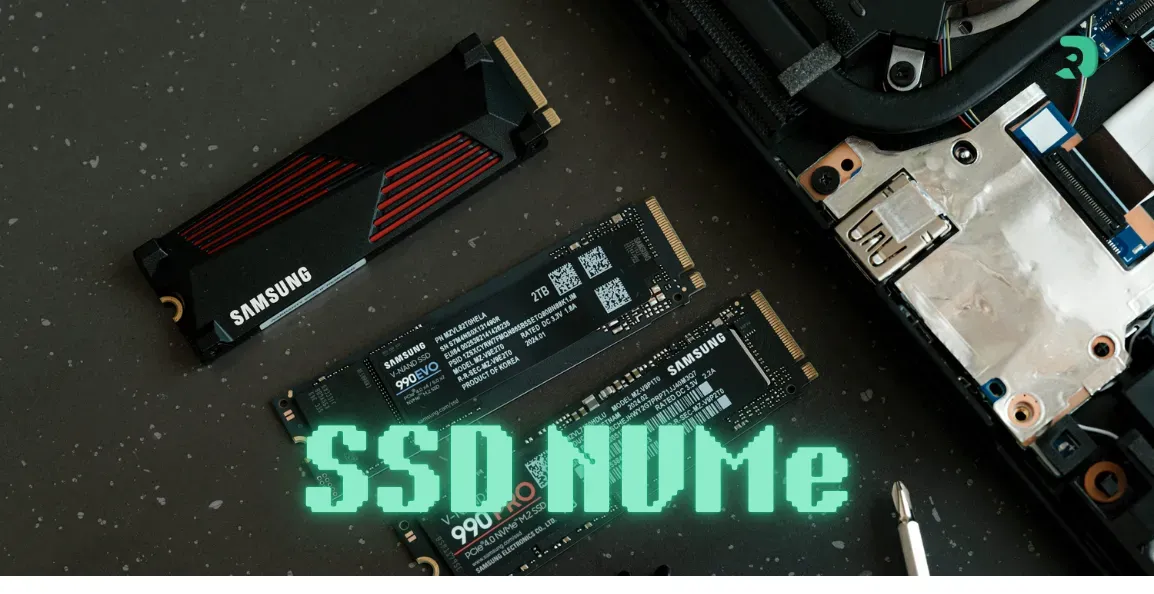
Mind the name: this is neither a 990 PRO nor a 990 EVO, but the plain “Samsung 990” (part number MZ-V9V1T0BW). A DRAM-less PCIe 4.0 drive at up to 7,150 / 6,450 MB/s, with Samsung’s own controller and V-NAND, which Samsung presents as more efficient per watt than the 990 PRO.

Pros
  • Up to 7,150 / 6,450 MB/s according to the data sheet
  • Samsung controller and V-NAND, Samsung Magician software
  • 400 TBW, low power draw: well suited to laptops
Cons
  • DRAM-less (HMB cache)
  • Only a 3-year warranty
  • Name easily confused with the 990 PRO and 990 EVO: check the part number MZ-V9V1T0BW
FranceCheck the price in my country
Crucial P310 1 TB (CT1000P310SSD8)

A PCIe 4.0 drive that is fast on paper (up to 7,100 / 6,000 MB/s), with a DRAM-less Phison E27T controller and 232-layer Micron QLC memory. Great for expanding storage on a PC or laptop, less so for massive sustained writes.

Pros
  • Up to 7,100 / 6,000 MB/s
  • 5-year warranty
  • Low power draw, M.2 2280 form factor
Cons
  • QLC memory: speeds drop during very large copies
  • Only 220 TBW, the lowest in the selection
  • DRAM-less (HMB cache)
FranceCheck the price in my country

Never run out of space again: WD Green SN3000 2 TB

If your problem is mainly capacity, the 2 TB SN3000 is the most sensible option in the selection. It is slower and less durable than the others, but for storing games or photos, that does not matter. For other, faster 2 TB drives, see our 2 TB NVMe SSD guide.

WD Green SN3000 2 TB (WDS200T4G0E)

The way to never see the red bar again: 2 TB of PCIe 4.0 at up to 5,000 / 4,200 MB/s. Slower than the 1 TB drives in the selection, but more than enough for a game library or photos, with the best capacity-to-price ratio of the bunch.

Pros
  • 2 TB: room for games, photos and videos
  • Up to 5,000 / 4,200 MB/s, enough for a storage drive
  • Single-sided, M.2 2280 form factor
Cons
  • QLC memory: only 250 TBW for 2 TB
  • 3-year warranty
  • The slowest in the selection
FranceCheck the price in my country

The 5 SSDs compared

All data comes from the manufacturers’ data sheets. TBW (terabytes written) indicates the rated endurance: the higher it is, the better the SSD handles intensive writes. To understand the difference between TLC and QLC memory, our guide to SSD types covers it. The second table sums up which models fit which segment; SSD prices are moving fast right now, so rely on the price shown in each product box.

Model Capacity Read / write Memory Endurance Warranty Best for
WD_BLACK SN7100 1 TB 7,250 / 6,900 MB/s TLC 600 TBW 5 years Games, video, big transfers
Samsung 990 1 TB 7,150 / 6,450 MB/s V-NAND, DRAM-less 400 TBW 3 years Laptop, all-round use
Crucial P310 1 TB 7,100 / 6,000 MB/s QLC, DRAM-less 220 TBW 5 years Laptop, storage
Kingston NV3 1 TB 6,000 / 4,000 MB/s Not specified by Kingston 320 TBW 5 years (limited) Tight budget
WD Green SN3000 2 TB 5,000 / 4,200 MB/s QLC 250 TBW 3 years Capacity first
Swipe to view more
Segment Price guide Models in this guide
1 TB PCIe 4.0 NVMe SSD See the live price in each product box SN7100, 990, P310, NV3
2 TB PCIe 4.0 NVMe SSD A step above the 1 TB drives, best price per TB in the selection SN3000
Swipe to view more

Installing an M.2 SSD to take the load off the C drive

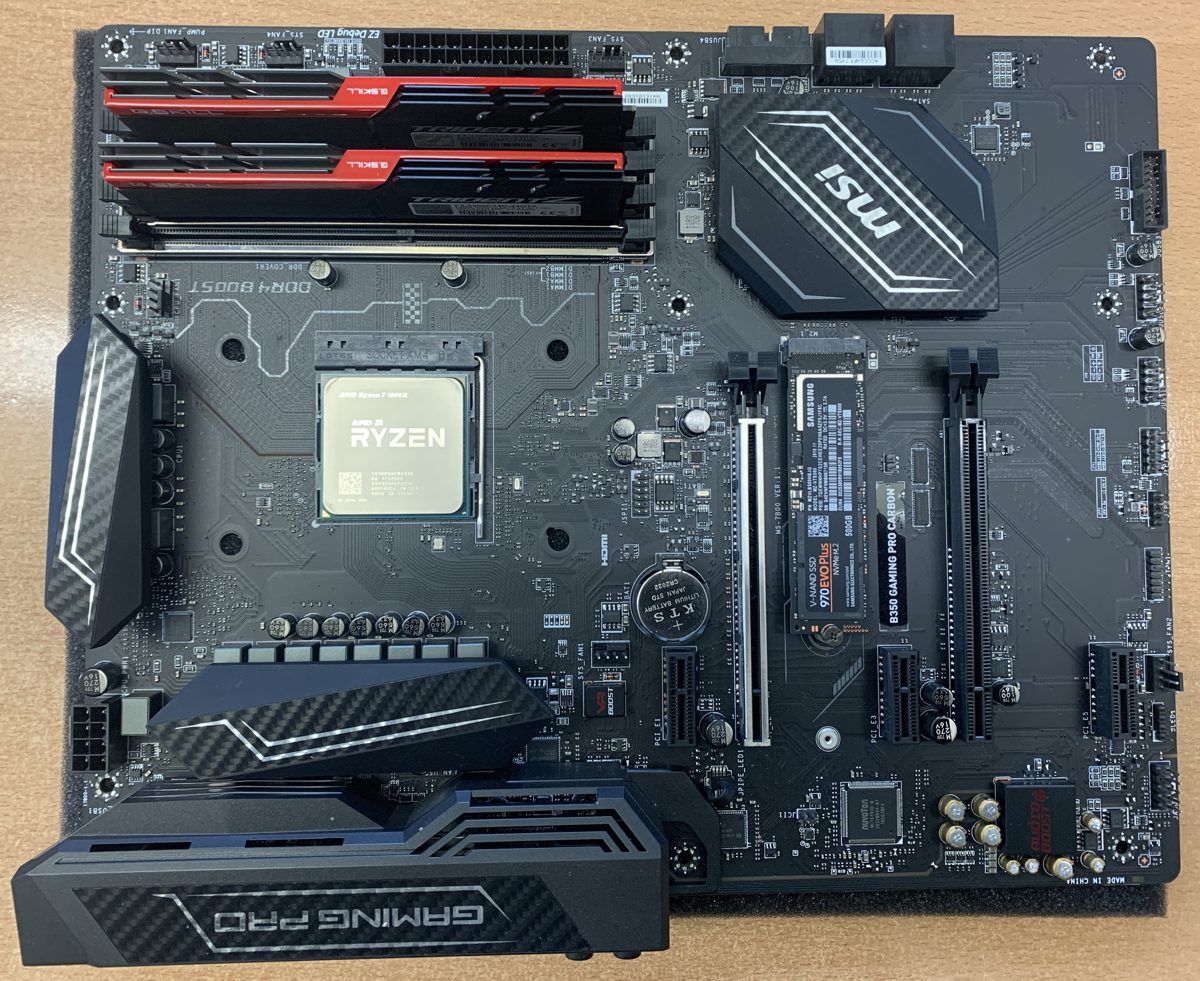
Carte mère de PC avec un SSD NVMe installé dans son slot M.2 entre les ports PCIe Click to enlarge
  1. Check your motherboard or laptop: number of free M.2 slots, 2280 form factor and NVMe PCIe support. A PCIe 4.0 SSD works in a PCIe 3.0 slot, just at 3.0 speed (see our guide to PCIe 4.0 SSDs).
  2. Shut down and unplug the PC, then touch a metal part of the case to discharge static electricity.
  3. Insert the SSD at an angle into the M.2 slot, push it down and secure it with the screw or clip provided. Put the motherboard heatsink back on if there is one.
  4. Initialize the drive in Windows: right-click Start > Disk Management, initialize the new SSD as GPT, then create a simple volume.
  5. Move what takes up space: game libraries, Videos and Downloads folders, and set the location for new content to the new drive.

Would you rather replace the C drive with a bigger one? Then you need to clone the old SSD to the new one with the manufacturer’s tool or cloning software, or do a clean reinstall of Windows. On a laptop with a single slot, it is the only option.

FAQ: full C drive, Compact OS and SSD

Can you compress the Windows folder with WinRAR or 7-Zip?

No. Windows cannot read its own files inside an archive, and with certain options WinRAR can even delete the files it has just archived. To compress Windows, use compact.exe /CompactOS:always guide.

Does Compact OS slow Windows down?

Decompression asks the CPU for a little work. On a recent PC, the difference is rarely noticeable; on an old CPU, you may feel it. You can roll back at any time with compact.exe /CompactOS:never guide.

How much space does Compact OS save?

Microsoft cites more than 3.7 GB on 64-bit Windows 10 version 1607. It is a ballpark: the real gain depends on your Windows version. The Linus Tech Tips video gives no figure.

Can you delete the WinSxS folder?

No, never. Use Dism.exe /online /Cleanup-Image /StartComponentCleanup instead, or let Windows’ scheduled task take care of it.

What SSD capacity should you add?

1 TB is enough for Windows, apps and a few games. If you play a lot or store videos, go for 2 TB.

Does a PCIe 4.0 SSD work on a PCIe 3.0 motherboard?

Yes, the M.2 NVMe format is backward compatible: it will run at PCIe 3.0 speed. Just check that the slot supports NVMe and not only SATA.

Conclusion: compression is a stopgap, an SSD fixes the problem
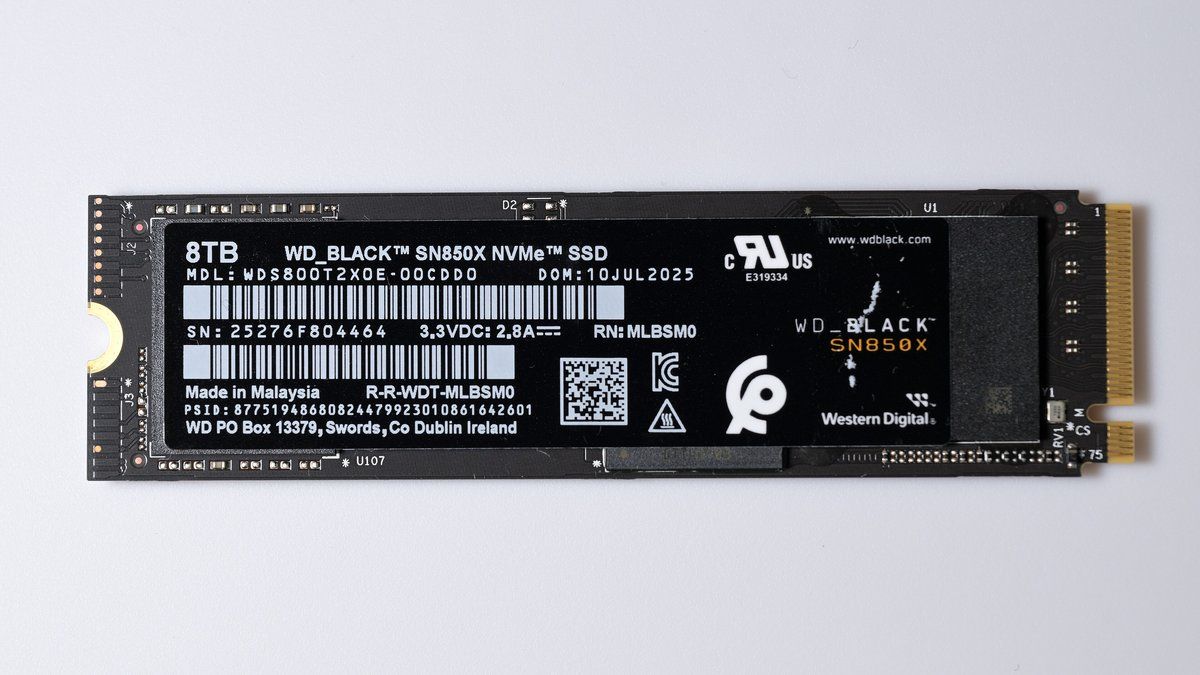
The Linus Tech Tips video makes it clear: wanting to compress Windows is not a crazy idea, but archiving the Windows folder with WinRAR is the worst way to do it. First clean up with Storage Sense and Disk Cleanup, reclaim hibernation and Windows.old, then turn on Compact OS if you urgently need a few gigabytes. After that, add an NVMe SSD: the Kingston NV3 on a budget, the WD_BLACK SN7100 for games, the Samsung 990 or Crucial P310 for a laptop, and the WD Green SN3000 if you want 2 TB.